For faint skies
Choose Dark window, then read it with the background and estimated light. Check actual weather before heading out.
Moon Metrics Pro · Manual
Read the curve. Understand the light. Make every Moon detail on your watch mean something.
From your first location fix to the next night without moonlight, this manual explains the graph, all ten Moon information fields and the settings that make the watchface yours.
Use the display selector in the main graph guide, then compare every symbol beside its explanation in Monochrome MIP, Colour MIP and AMOLED. The visual comparisons share your selected location and current readings.
Your sky: Choose your location to calculate the readings. The readings in this guide follow your selected location and time. Your watch uses its own location and local time settings.
01 · Graph anatomy
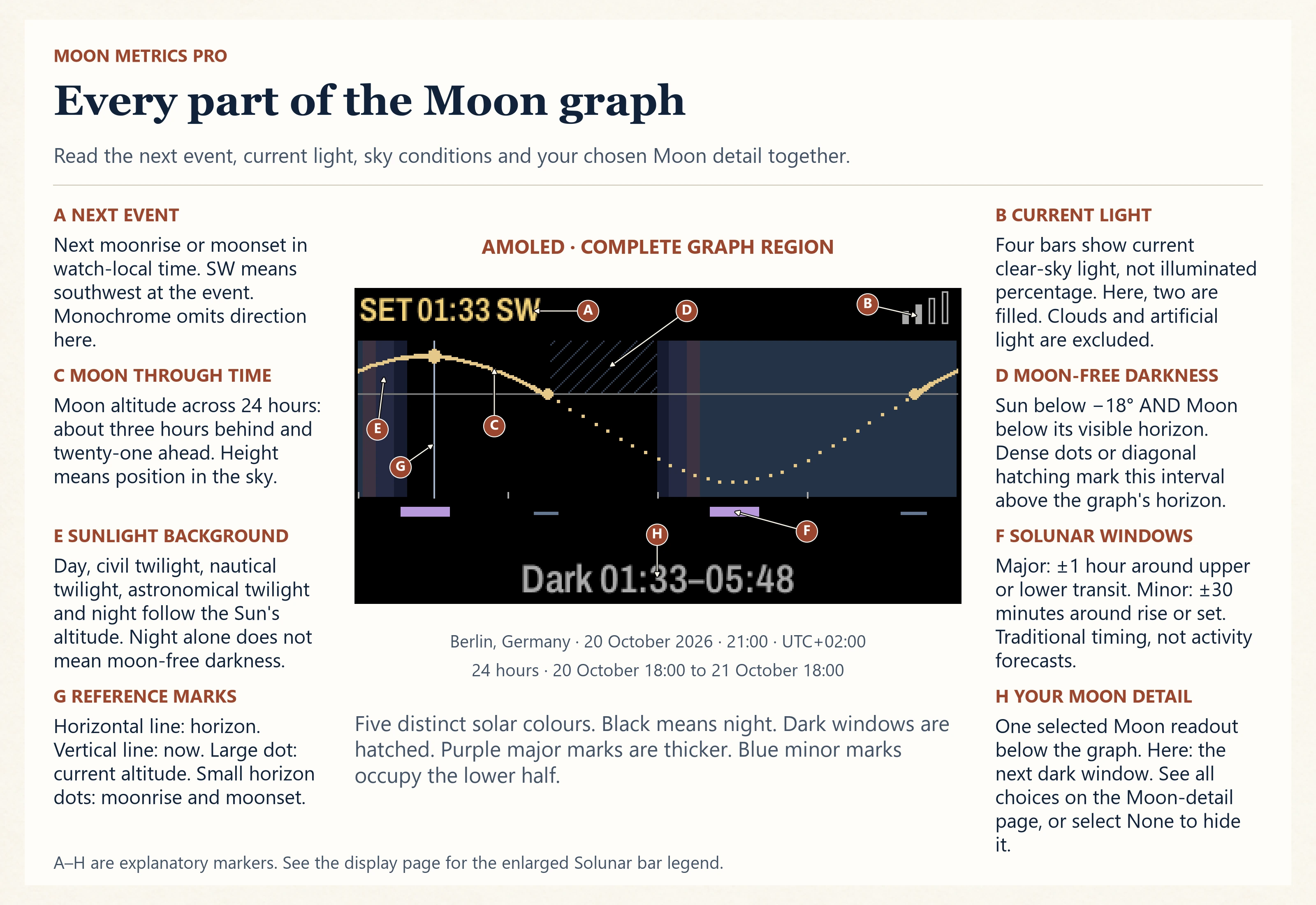
Seven details tell one story. Select a number to find its place on the Moon night display, then switch display types to see how the same sky is drawn.
Your sky, explained
Choose your location to calculate the graph.
Graph colour themes
Themes change the sunlight bands, Moon curve, now line, Solunar marks and darkness hatching. Readings and symbols keep their meaning.
Default · AMOLED
Choose Graph colour theme in the watch face settings. Monochrome displays keep their black and white graph.
Colour themes are available on AMOLED and colour MIP. Switch back to either display to compare them.
Calculating the graph for your location.
In focus
The lunar curve follows the Moon’s geometric centre over 24 hours. Height means altitude in your sky. Dots continue the path below the horizon.
Static reference illustrations explain the same symbols. Their archived values do not follow the location selected above.
02 · Time window
The graph covers 24 elapsed hours, starting three hours before the current quarter hour. Now sits about three hours from the left edge, with roughly 21 hours still ahead. It is a rolling window, rather than a calendar day starting at midnight.
The curve connects 97 samples taken 15 minutes apart. Short ticks mark local midnight, 06:00, noon and 18:00. Your current graph covers the next calculated interval.
03 · Above and below
The vertical position represents the Moon’s geometric centre altitude at your location. Positive values are above the horizon, negative values below it. The scale adapts in 30° steps and always includes at least 30° below and 30° above the horizon.
A segment is dotted when both ends lie below the geometric horizon. It becomes solid when either end touches or rises above it. This lets you follow the Moon’s path below the horizon without suggesting you can see it.
Calculating your display comparisons.
04 · Display technologies
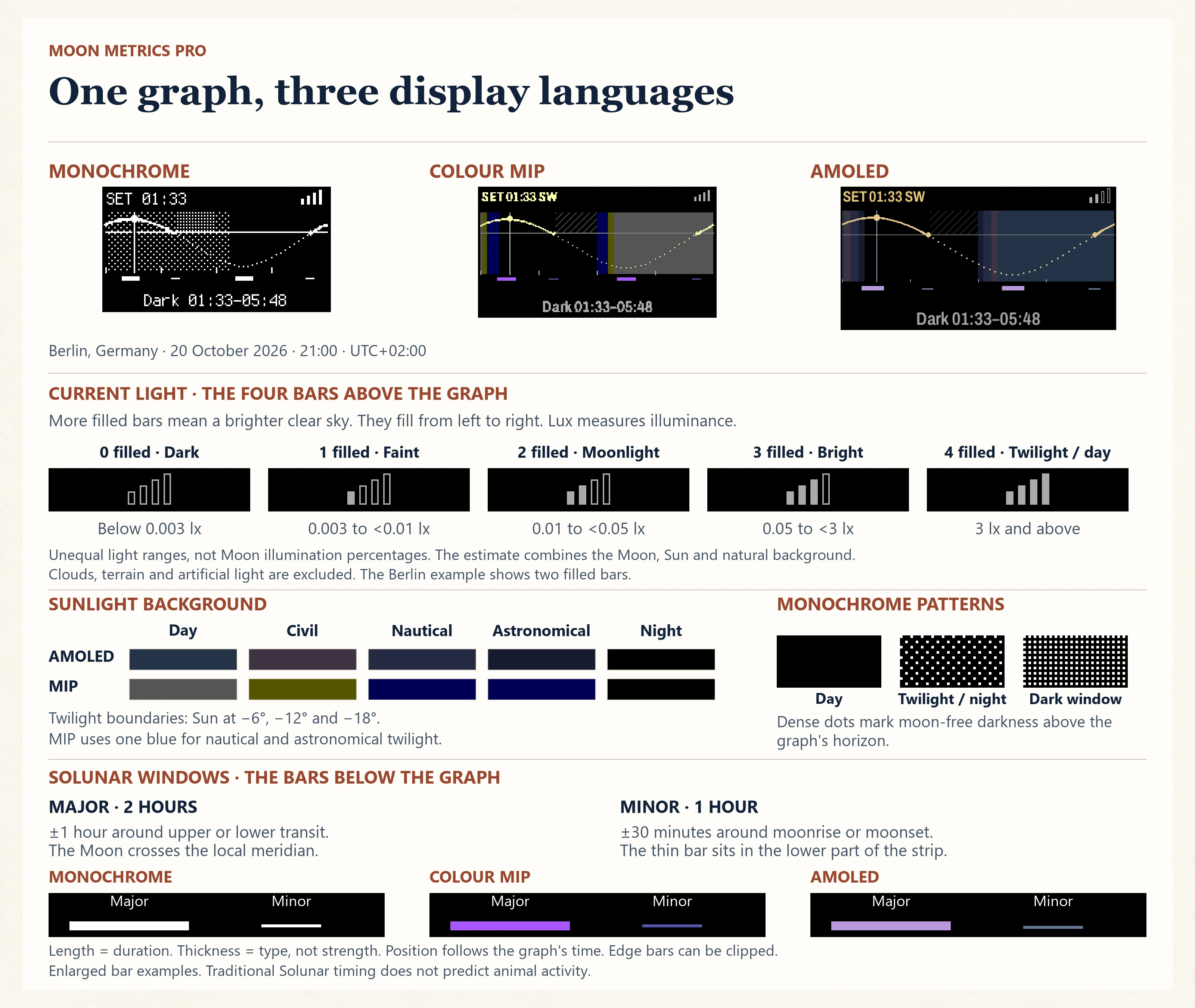
Compare the complete Moon night graph on all three display types. Each view uses the same location, time and astronomical calculations.
Calculating the monochrome graph.
Day is black. Twilight and night share sparse white dots. Denser dots above the horizon identify a dark window without moonlight. Major and minor Solunar marks are both white, with different thicknesses.
Calculating the colour graph.
Day and civil twilight use the selected theme. Nautical and astronomical twilight share one colour. Night is black. Diagonal hatching marks dark windows. Major Solunar marks are thicker, while minor marks occupy the lower half.
Calculating the AMOLED graph.
Five distinct background colours separate day, all three twilight stages and night. Dark windows are hatched. Major and minor Solunar marks follow the selected theme, with the same thickness cues as colour MIP.
Dark window patterns appear only above the graph’s horizon. They mark a time interval, not a part of the sky. On monochrome, denser dots mean darker conditions.
05 · Sunlight background
The background describes the calculated altitude of the Sun’s centre. It gives the lunar curve its daylight context.
Swipe the table or use arrow keys to read every column.
| Band | Position of the Sun’s centre |
|---|---|
| Day | 0.833333° below the horizon or higher |
| Civil twilight | More than 0.833333° and up to 6° below the horizon |
| Nautical twilight | More than 6° and up to 12° below the horizon |
| Astronomical twilight | More than 12° and up to 18° below the horizon |
| Astronomical night | More than 18° below the horizon |
The astronomical night band tells you the Sun is far enough below the horizon. The Moon may still be up and adding light.
Calculating your display comparisons.
06 · Dark window
A dark window without moonlight needs both conditions at once: the Sun more than 18° below the horizon and the Moon below its calculated visible horizon. Dense dots on monochrome, or diagonal hatching on colour, highlight it above the horizon line.
The Moon information field shows the current or first upcoming window in the next 24 hours. Before it starts, you see both times. During it, the field shows “Dark until” followed by the end time. An interval extending beyond the search period is clipped at the end of those 24 hours.
The window covers the next 24 hours. If darkness is already underway, the duration shows the time remaining.
Your current or next interval: Calculating · Checking the local date. Duration: Calculating.
Calculating your display comparisons.
07 · Next rise or set
The event row shows the next moonrise or moonset strictly after now, looking up to 48 hours ahead. Monochrome shows the event and time. Colour also includes its direction. The event may occur on the following day, even though the row does not print its date.
For your selected location: Calculating · Checking the local date · Calculating · Checking the direction.
A direction such as SW means southwest at that event, rounded to one of eight compass points. The separately selectable “Next rise or set” Moon field includes direction on every display type.
Enabling the optional upper data field changes the event row to a compact arrow: ↑ for rise or ↓ for set, followed by its time. Times use your watch’s preference for a 12 or 24 hour clock. With a 12 hour clock, a and p identify morning and afternoon.
Calculating your display comparisons.
08 · Illumination
Illumination is the rounded fraction of the Moon’s visible face lit by the Sun, from 0% to 100%. Your current reading is Calculating. It describes the disc, rather than the brightness at your location or your chance of seeing the Moon.
09 · Age and phase
Moon age counts elapsed days since the calculated previous new moon, shown to one decimal place. Your current reading is Calculating. It is not a countdown to full moon.
Your current phase: Calculating.
The phase field chooses one of eight names: New moon, Waxing crescent, First quarter, Waxing gibbous, Full moon, Waning gibbous, Last quarter and Waning crescent. Waxing means the sunlit fraction is increasing toward full. Waning means it is decreasing toward new.
Calculating your display comparisons.
10 · Next full moon
The next full moon field gives the date of the next calculated full moon in your watch’s local time zone. The watch uses day.month order in English too. This field displays a date, with no event time or countdown.
Your next full moon falls on the next calculated date. The website’s selected time zone determines the date shown here.
The calculation works without a location. The date still follows your watch’s local time conversion.
11 · Full moon names
Choose North American traditional names or historical German month names in settings. The name describes the next full moon. It does not rename tonight’s current phase.
Small displays use shorter forms. A Super or Micro modifier replaces the date when applicable. Your next full moon is being calculated in the North American naming tradition.
12 · Apparent size
Apparent size compares the Moon’s current angular diameter with a reference distance of 384,400 km. The calculation is 384,400 km ÷ current distance × 100%. Your current reading is Calculating of that reference diameter.
This value is independent of the Moon image’s fixed pixel size on your watch. A change in diameter is not the same as a change in area, illumination or light.
The full moon name can add Super when the next full moon is closer than 360,000 km, or Micro when it is farther than 405,000 km. Those are this watchface’s conventions. They use the distance at the next full moon, while the size field uses the current distance.
13 · Lux and four light bars
The ≈ symbol marks a modelled light estimate in lux (lx). It combines lunar phase and altitude, a simple daylight and twilight model, and a small background contribution. Available Garmin weather reduces the moonlight contribution according to cloud cover, fog or precipitation. It does not read a light sensor or include terrain or artificial lighting.
There are four bars and five levels. They always describe the current estimated light. Unfilled bars have outlines.
Swipe the table or use arrow keys to read every column.
| Filled bars | Estimated light | Reading guide |
|---|---|---|
| 0 | Below 0.003 lx | Dark |
| 1 | 0.003 to below 0.01 lx | Faint |
| 2 | 0.01 to below 0.05 lx | Moonlight |
| 3 | 0.05 to below 3 lx | Bright |
| 4 | At least 3 lx | Day or twilight |
The words in the last column explain the scale. They are not a legend printed beside the watch’s bars. Four filled bars can occur during twilight.
The numeric field uses three decimal places below 0.01 lx, two below 1 lx and whole lux above that. Your current estimate is Calculating.
Calculating your display comparisons.
14 · Solunar windows
Major windows last two hours: one hour before and after the Moon’s upper or lower meridian transit. Minor windows last one hour: 30 minutes before and after moonrise or moonset.
The strip under the graph draws major periods as thicker marks and minor periods in its lower half. Windows are clipped at the graph’s edges. A lower transit does not mean a rise or set, and the Moon can be below the horizon.
The information field chooses a current period first, otherwise the next one within 48 hours. Before a window, it shows its start. During a window, it shows the end. Major takes priority when current windows overlap.
Your current or next Solunar period: Calculating.
Calculating your display comparisons.
15 · Your Moon detail
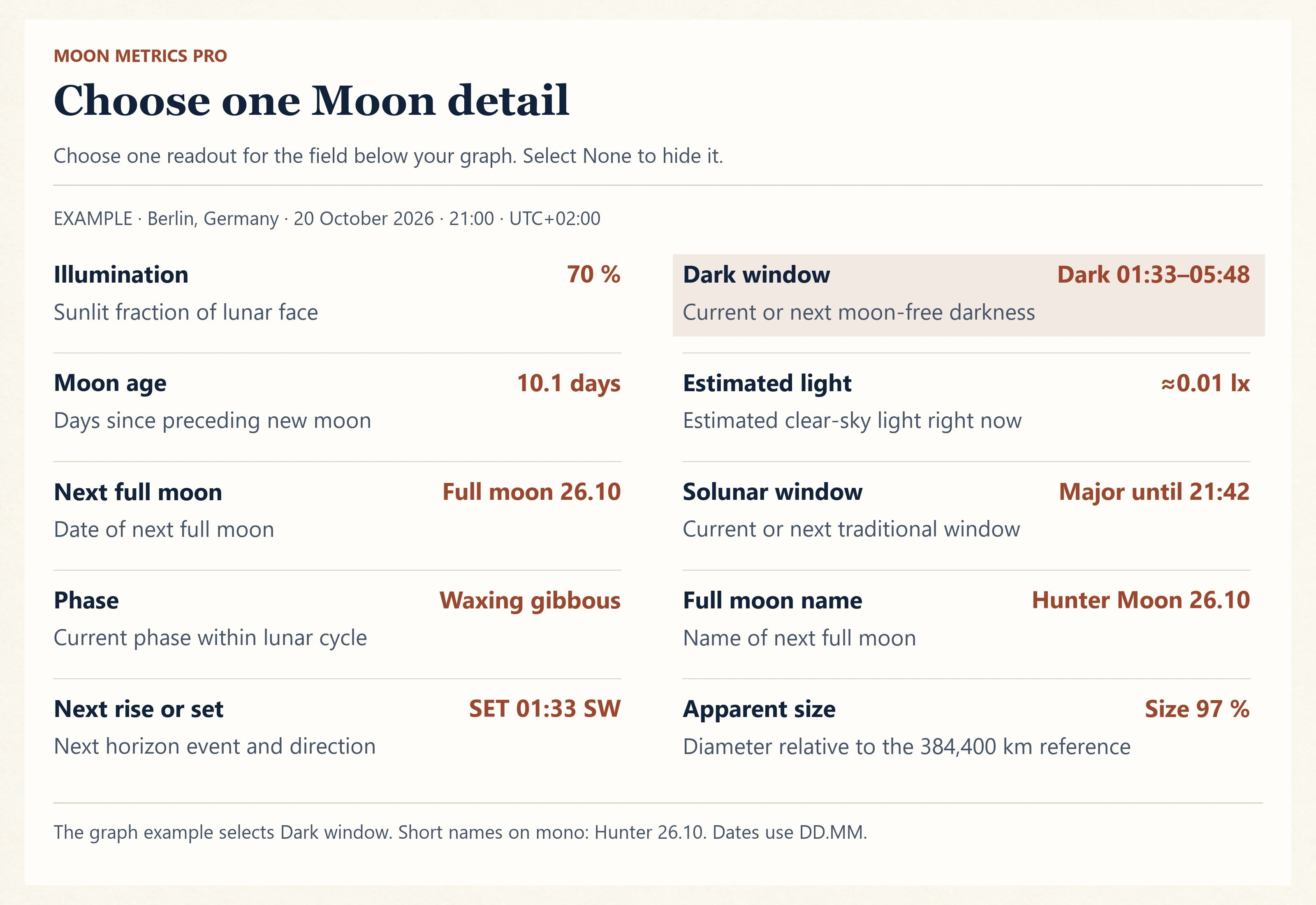
Select one of ten Moon information fields, or choose None to hide it. These are separate from the optional battery, weather and sensor data fields.
Swipe the table or use arrow keys to read every column.
| Field | Your current reading | What it tells you |
|---|---|---|
| Illumination | Calculating | Sunlit fraction of the lunar face. |
| Moon age | Calculating | Time since the preceding new moon. |
| Next full moon | Calculating | Date of the next full moon. The watch uses day.month order. |
| Phase name | Calculating | Current stage of the lunar cycle. |
| Next rise or set | Calculating · Calculating · Checking direction | Next horizon event, time and direction. |
| Dark window | Calculating | Current or next interval of astronomical darkness without moonlight. |
| Estimated light | Calculating | Current estimated light with the moonlight contribution adjusted for weather. |
| Solunar window | Calculating | Current or next traditional timing window. |
| Full moon name | Calculating | Name of the next full moon. Small displays use shorter forms. |
| Apparent size | Calculating | Current apparent diameter relative to the reference distance. |
| None | Empty | Hides the selected Moon information text. |
Choose Dark window, then read it with the background and estimated light. Check actual weather before heading out.
Choose Next rise or set and use the phase and altitude curve to plan your composition. Allow for local obstructions.
Choose Moon age, Illumination, Next full moon or Full moon name to keep the cycle in view.
The table presents the same readings with room for explanatory labels. Your watch displays one selected Moon detail at a time. Choose None for a quieter display.
Calculating your display comparisons.
16 · Plan a night
Your night · Choose a location to begin.
Use the line marking now and the local dates to keep past events separate from those still ahead. Change your location or time above to read a different night.
Make it yours
Open Moon Metrics Pro’s watchface settings in Garmin Connect IQ, choose your layout and location, then select the Moon detail and additional data you want to see.
These are the watch’s own symbols, enlarged for clarity. Values come from your device.
Loading the watch symbols.
Moon night shows the time, date, Moon, next rise/set, light bars and altitude graph covering 24 hours. Compact gives more emphasis to the time and Moon. On monochrome Instinct models, the Moon stays in the subscreen.
Three optional data fields let you choose Off, battery percentage, heart rate, steps, weather temperature, battery days remaining, altitude, air pressure or precipitation chance.
Each additional field combines an icon with a compact value. Temperature and altitude follow your watch’s unit settings. Air pressure is shown in hPa without a unit suffix. K means thousand and d means days.
The texture is a schematic lunar surface. It is not a photographic simulation of libration or continuous surface rotation.
The watchface follows the watch’s language: English, German, French, Spanish, Italian or European Portuguese. Other watch languages use English. Times follow the watch’s preference for a 12 or 24 hour clock.
On supported AMOLED devices, choose a reduced resting display or turn it off, subject to the system’s settings. The reduced view keeps a simple Moon phase. On Crossover, the active watchface requests a horizontal hand position and returns the hands to the system clock when it sleeps or exits.
Pressure arrows compare the current local sensor pressure with a reading roughly three hours earlier: ↗ for a rise of at least 1 hPa, ↘ for a fall of at least 1 hPa and → for the range between. If the required history is missing, a dash replaces the arrow while a valid current pressure remains visible.
This is local sensor pressure, without altitude correction. A substantial change in elevation can affect the trend.
The droplet and percentage show Garmin’s latest available precipitation chance. Garmin does not guarantee a specific hourly interval for that value. It is a probability, rather than a rainfall amount.
Location and availability
All astronomical calculations run offline. The watchface needs no account, API key or server connection for its Moon calculations.
See exactly what the watch calculates →
Automatic mode uses an available passive device position and remembers the last valid fix. It does not start a GPS recording. Recording a GPS activity can provide an updated position.
For manual mode, enter both latitude and longitude for your observing location. Decimal points and decimal commas are accepted. Blank or invalid coordinates do not create a default location.
Phase, illumination, Moon age, next full moon date and name, and apparent size remain available. The graph, rise/set, dark windows, estimated light and Solunar windows need coordinates. Without them, the Moon orientation falls back to an upright northern view.
In Moon night, a selected Moon field that needs coordinates falls back to illumination and the graph shows Set location. In Compact, the selected field keeps the location prompt. With the upper optional data field enabled, an unavailable event row shows two short dashes.
Swipe the table or use arrow keys to read every column.
| Message | Meaning |
|---|---|
Set location | A valid observer location is needed. |
No event <48h | No upcoming moonrise or moonset was found within 48 hours. |
No dark window | No qualifying dark interval was found in the next 24 hours. |
No solunar window | No qualifying current or upcoming Solunar period was found. |
... | A calculation is still completing. This can appear briefly after loading or while a name is prepared. |
| Two short dashes | An additional data value is unsupported, missing or too old to display, or a compact event row is unavailable. |
The watchface uses existing Garmin data without activating sensors or making its own online weather requests. Available Garmin weather supplies temperature and precipitation chance and adjusts the calculated moonlight for current conditions. Battery days remaining depends on a value provided by the device and shows two short dashes when unsupported.
Selected heart rate, steps, altitude and battery percentage are read each minute. Weather, precipitation, pressure and battery days are checked every five minutes. Selecting a different field prompts an immediate read.
When a reading is briefly unavailable, the last valid value can remain until its age limit: five minutes for heart rate, 15 minutes for altitude and pressure, and three hours for weather. Age is measured from the original reading. After that, the field shows two short dashes.
Rise and set assume a clear horizon at sea level and standard atmospheric refraction. Terrain, observing height and weather can move the visible event.
Displayed dates and times use Garmin’s local time conversion. A documented Garmin SDK limitation affected two tested daylight saving boundary times, so local event labels can be affected near a transition. The underlying astronomical calculations use UTC. Website readings follow the time zone selected above.
Continue exploring